Zoom Connector Tutorial
In this tutorial, we’ll see how to connect and disconnect your ASPR account to your Zoom Account.
Adding Zoom App
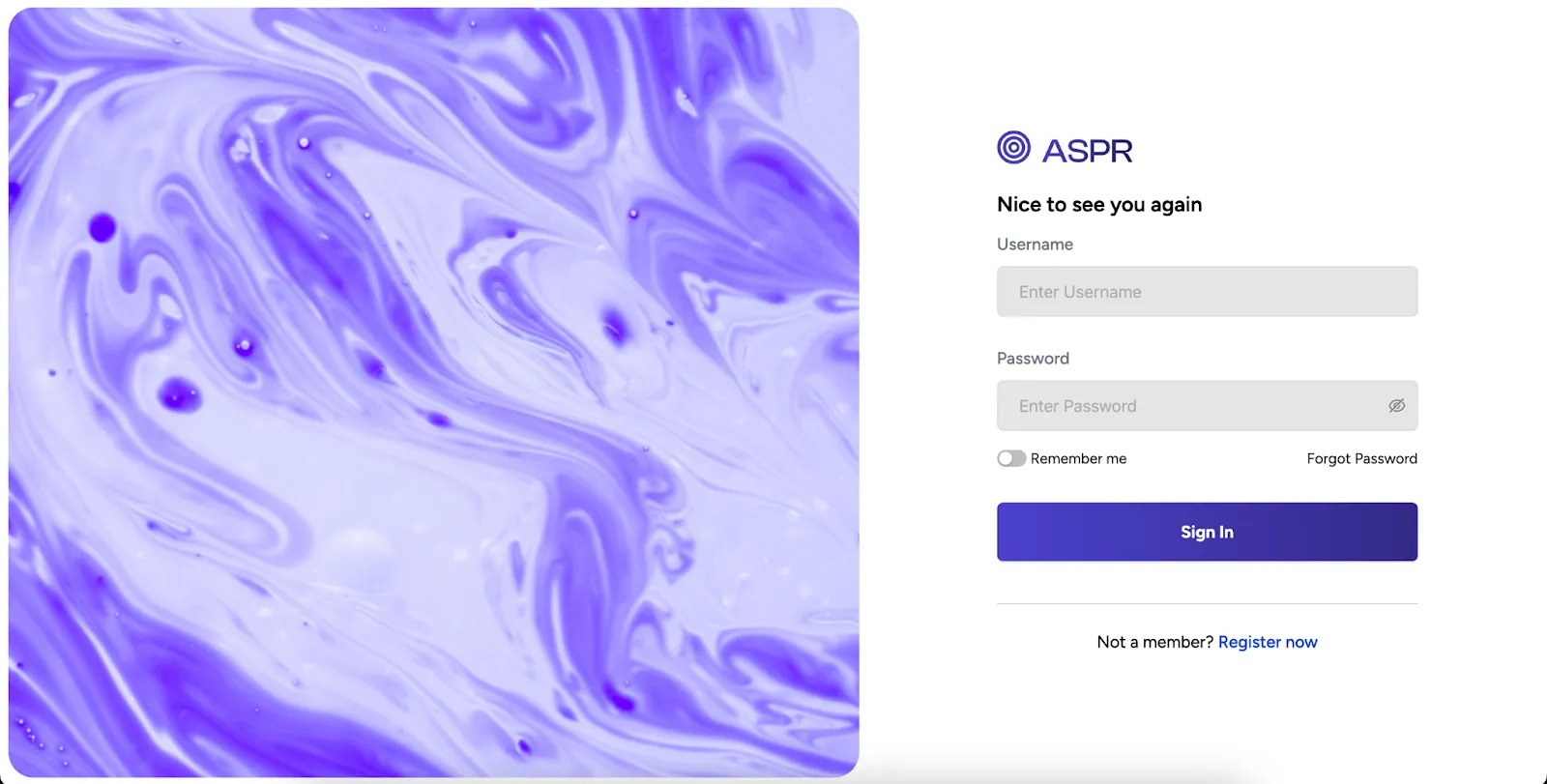
- Login into aspr.ai account
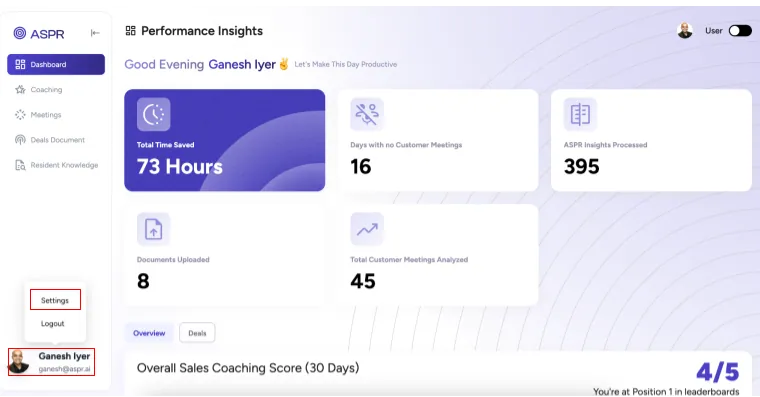
- Head over to Settings Menu in the bottom right of your account
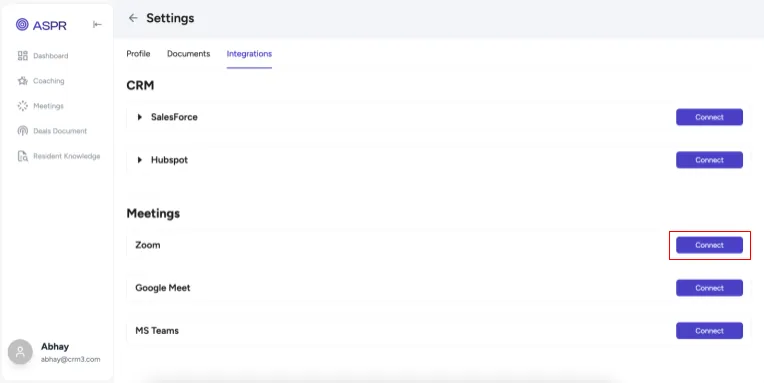
- Go to Integrations Tab and click on Connect against Zoom Connection
- Authorize your Zoom after reviewing permissions
- Connection Established! - That’s it, your Zoom account is now connected with your ASPR account. You’ll be able to see all Zoom meetings from the ASPR Meetings tab.
Usage
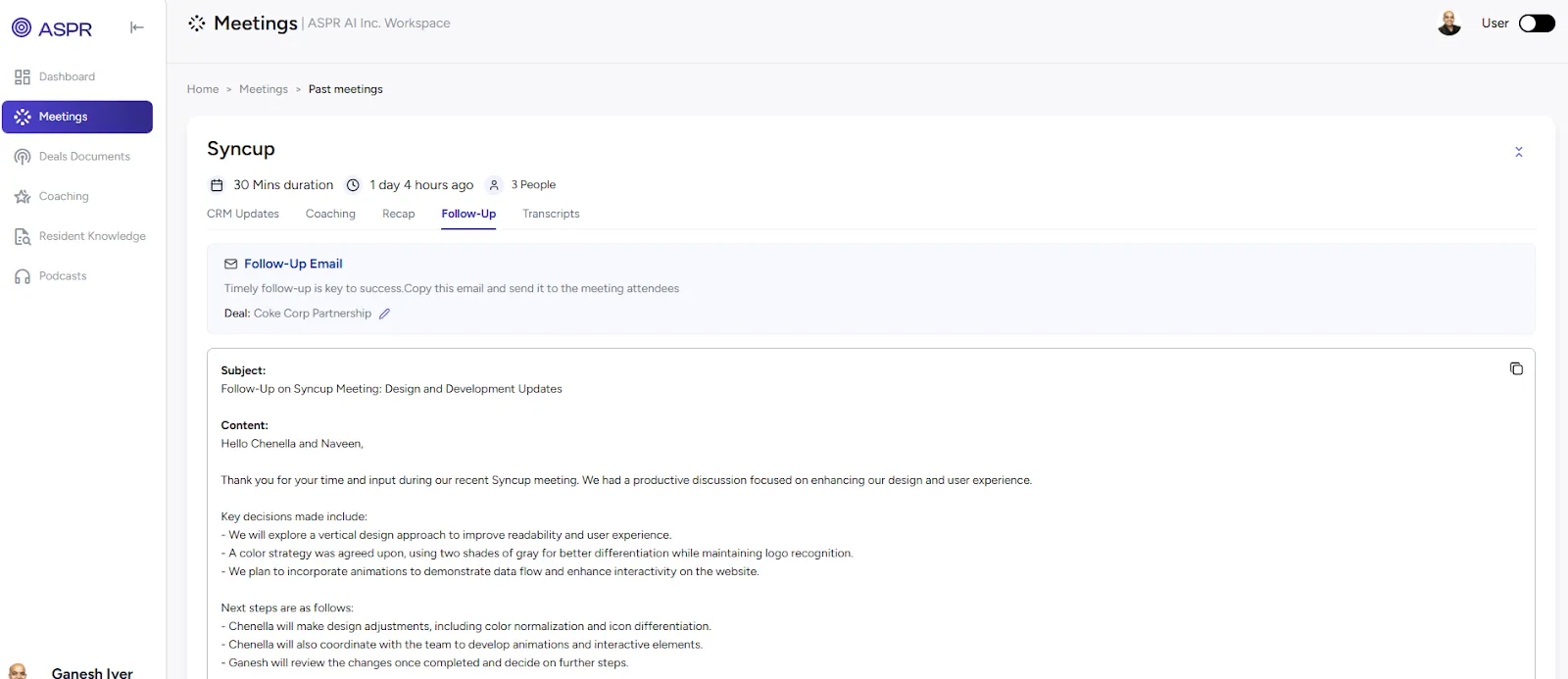
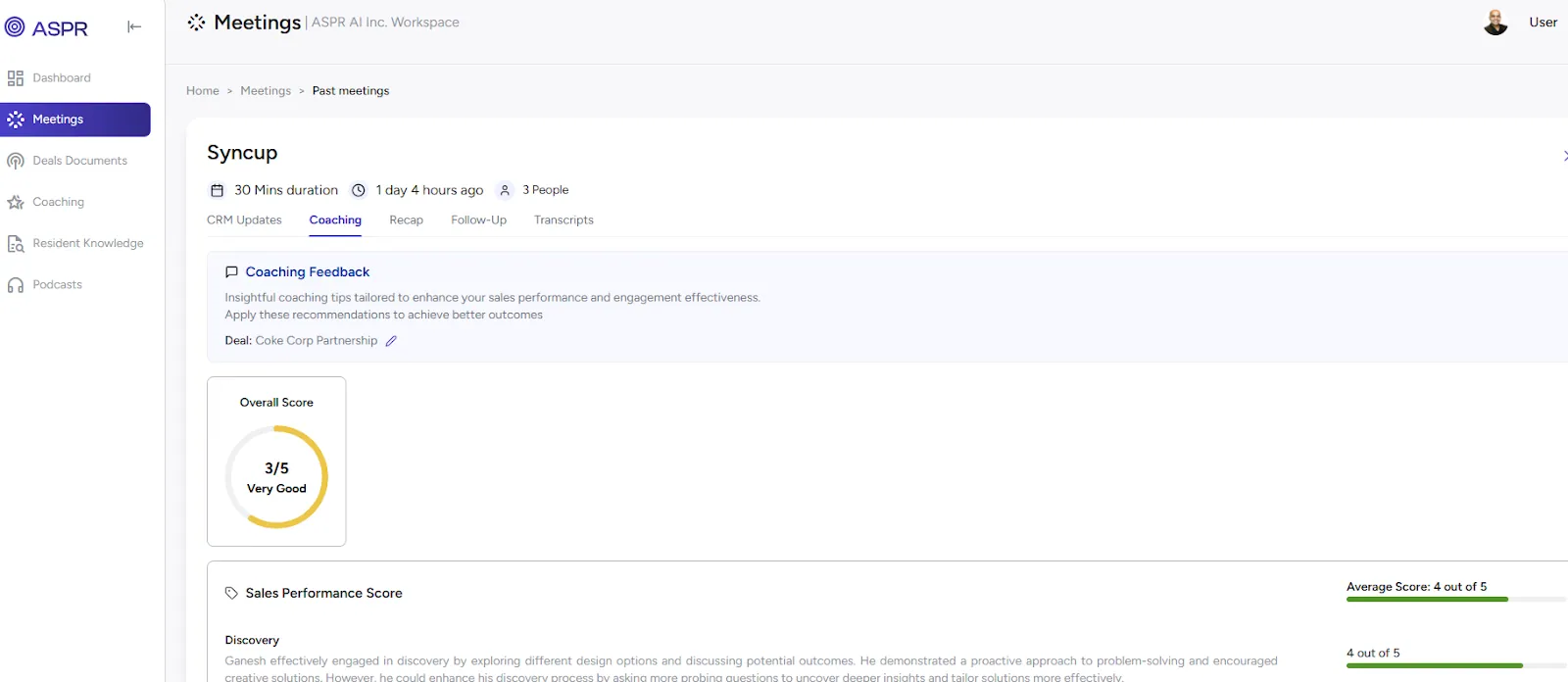
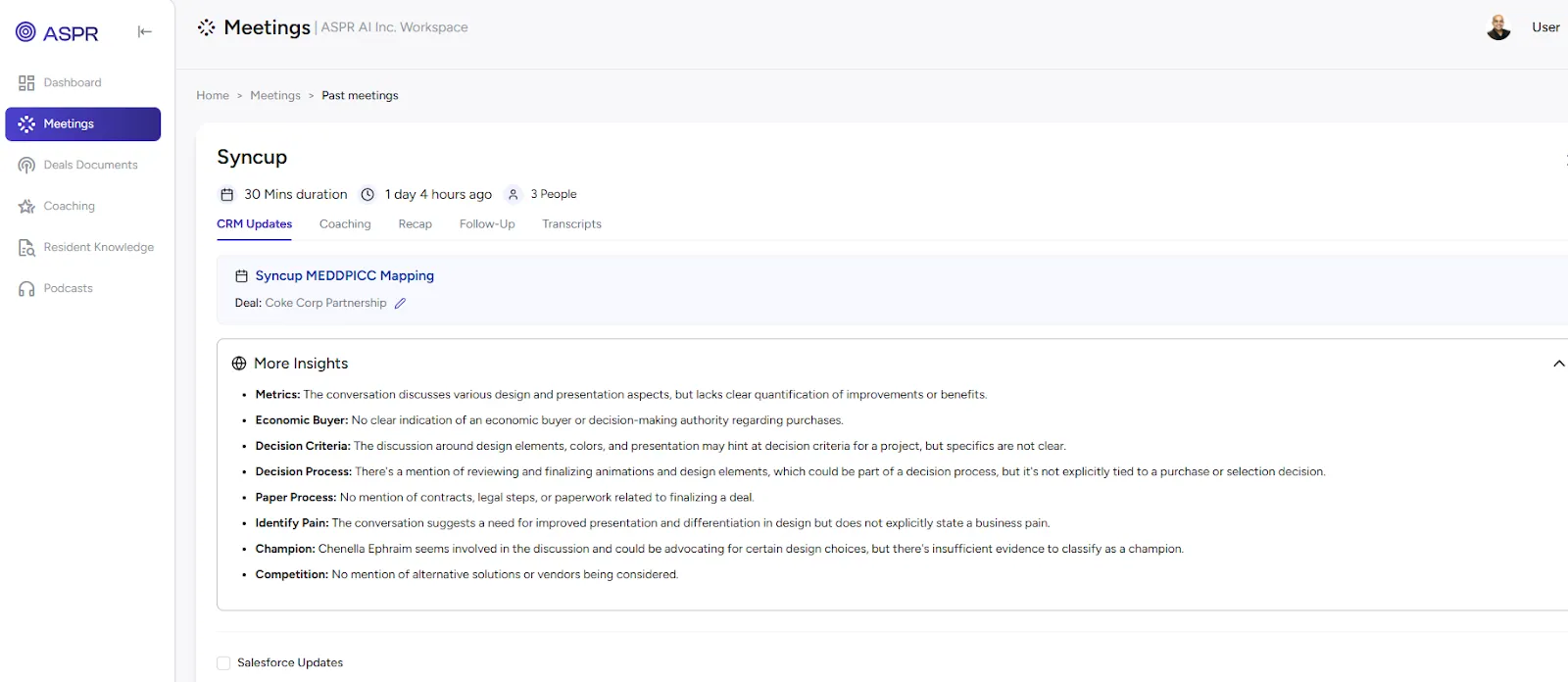
- When a recorded meeting concludes, transcripts are automatically generated and appear under the Past Meetings tab within the relevant meeting entry.
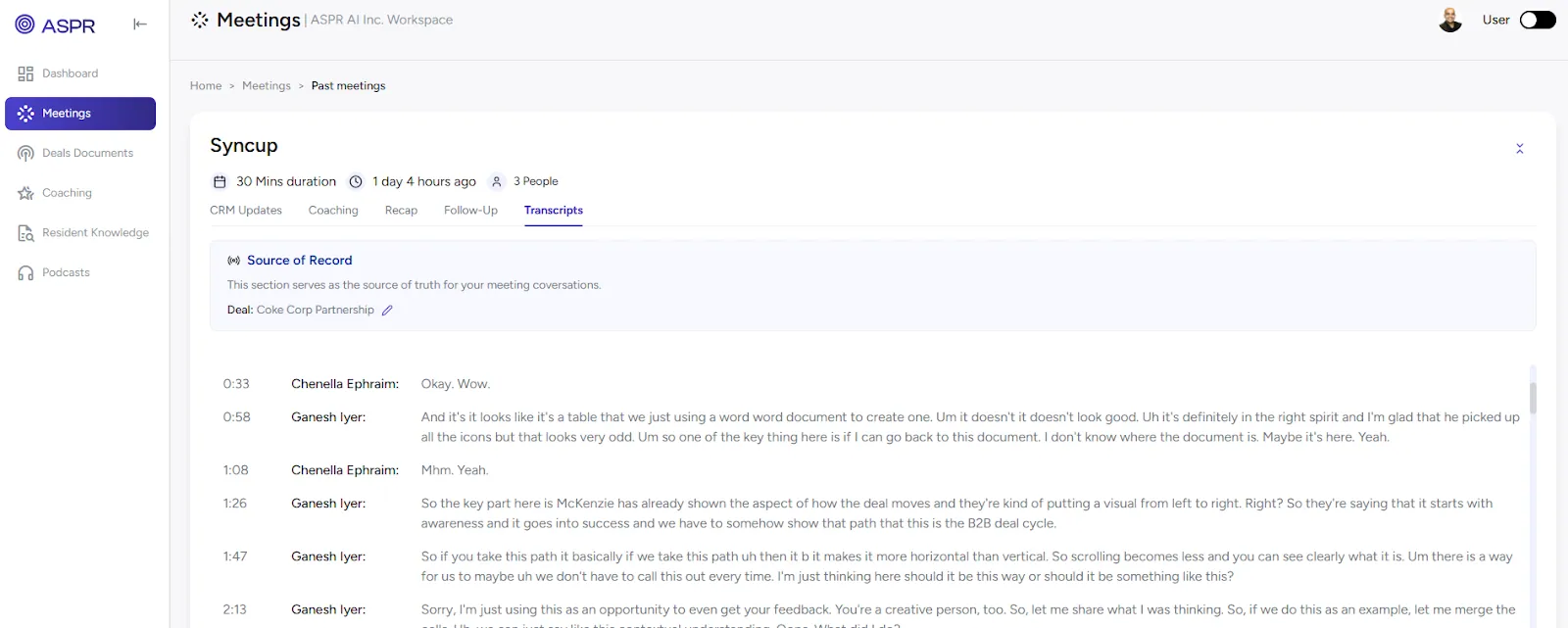
- Transcripts generate meeting recaps, draft follow-up emails, deliver coaching insights, and extract key information for seamless CRM updates.
Disconnecting your Zoom Account
- Login into your ASPR Account and go to the Integrations Page as above
- Click on the Disconnect Button
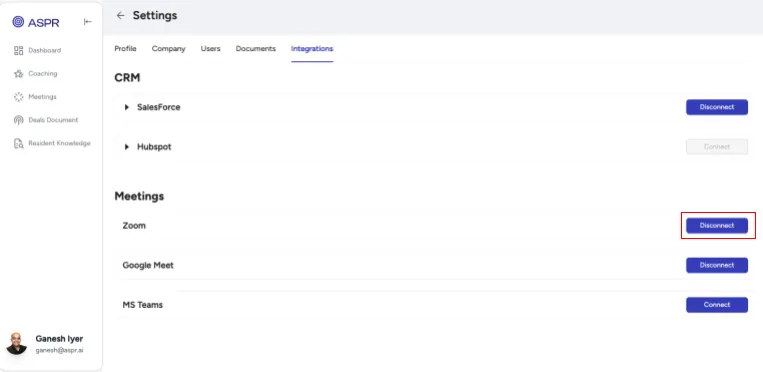
- That’s it! Your Zoom account is now disconnected from ASPR.